
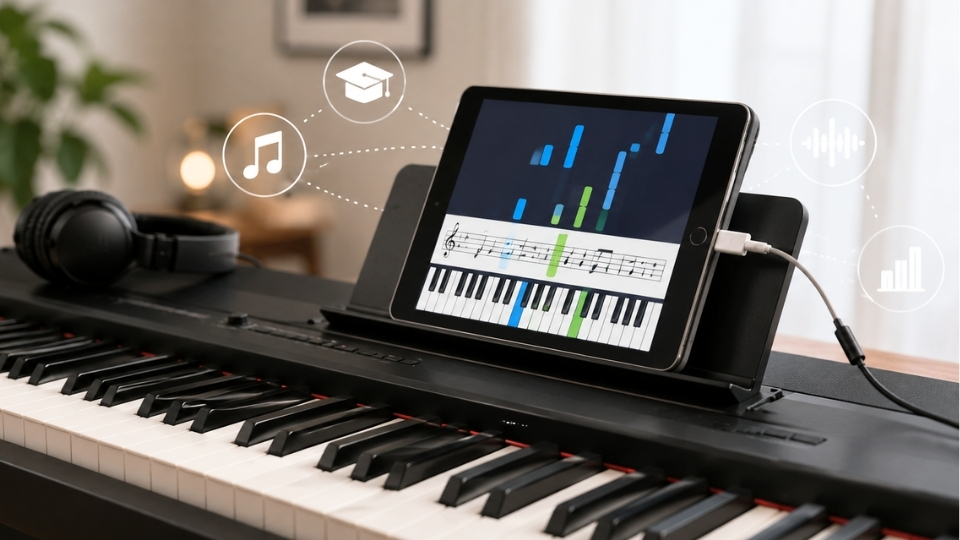
Learning piano in Glasgow feels very different from what it did even a few years ago. A good teacher still matters. A steady practice routine still matters. Yet an iPad can now help you see notes, track rhythm, record ideas, play backing tracks, and make practice feel less lonely. If you want guided support alongside smart home practice, Glasgow Piano Tuition can help you build the musical skills behind the tech. Connect piano to iPad, and your practice space can become a small interactive studio rather than just a keyboard in the corner.
I still remember watching a young learner tap through a note reading app after a lesson and suddenly realising why their left hand kept arriving late. The look of relief was lovely. The iPad did not replace the teacher. It simply made the problem visible. That is where interactive learning can be genuinely useful.
Table of Contents
Quick answer
Most digital pianos and keyboards can connect to an iPad through MIDI. You usually need one of these setups:
- A USB-C cable for newer iPads and newer keyboards
- A Lightning to USB camera adapter for older iPads
- A USB B to USB A cable plus the right Apple adapter for many digital pianos
- A Bluetooth MIDI adapter if your instrument or app supports wireless MIDI
- A music app such as GarageBand, Simply Piano, Flowkey, Piano Marvel, Playground Sessions, or a notation app
Apple says iPad models with USB-C can connect to audio interfaces and MIDI devices, and GarageBand for iPad can use compatible Bluetooth MIDI devices to play and control Touch Instruments. That is good news for many learners, though the exact cable still depends on your piano model and iPad port.
Why Connect piano to iPad for learning?
Interactive piano learning is not about chasing gadgets. It is about feedback. Your iPad can show whether you played the right note, whether your timing is steady, and whether your hands are really together. For beginners, that can be surprisingly motivating.
Current UK music learning data supports this shift toward digital support. ABRSM reported that 30 per cent of younger learners now use apps on phones and tablets to practise and learn music, while 22 per cent record their music-making on those devices. The same report says 69 per cent of children under 18 had played a musical instrument in 2024. Piano also remains the most popular instrument taught by private music teachers.
For Glasgow families, that matters. Between school, homework, rain, buses, and busy evenings, a child may only have a short window to practise. A clear app can make those twenty minutes more focused. Adults can benefit too, especially if they are coming back to the piano after years away and feel a bit rusty.
Quick facts before you start
| Point | What it means | Why it matters |
| MIDI | A data signal that tells the iPad which notes you press | It lets apps listen to your playing accurately |
| Audio | The actual sound from your piano | Many learning apps need MIDI, not just audio |
| USB C iPad | Newer iPads can connect to many accessories through one port | Often the cleanest setup for MIDI devices |
| Lightning iPad | Older iPads usually need an Apple camera adapter | Some setups also need extra power |
| Bluetooth MIDI | A wireless way to send note data | Useful for tidy rooms, but latency can vary |
| Teacher support | A tutor helps turn app feedback into real technique | This avoids bad habits that apps may miss |
The simple gear you need to Connect piano to iPad
Before buying anything, check the back or underside of your piano. Look for a port labelled USB to Host, MIDI, USB, or Bluetooth. Many Yamaha, Roland, Casio, Kawai, and other digital piano models include one of these options.
You may need:
- Your iPad
- Your digital piano or keyboard
- The correct USB cable for your piano
- The correct Apple adapter for your iPad
- A powered USB hub if the piano draws too much power
- A stable stand so the iPad does not slide off during practice
One small opinion here. I am always impressed by how much cleaner the setup is with a newer USB C iPad. One cable can often do the job. With older Lightning iPads, it still works, but you may need an adapter and sometimes a charging cable too.
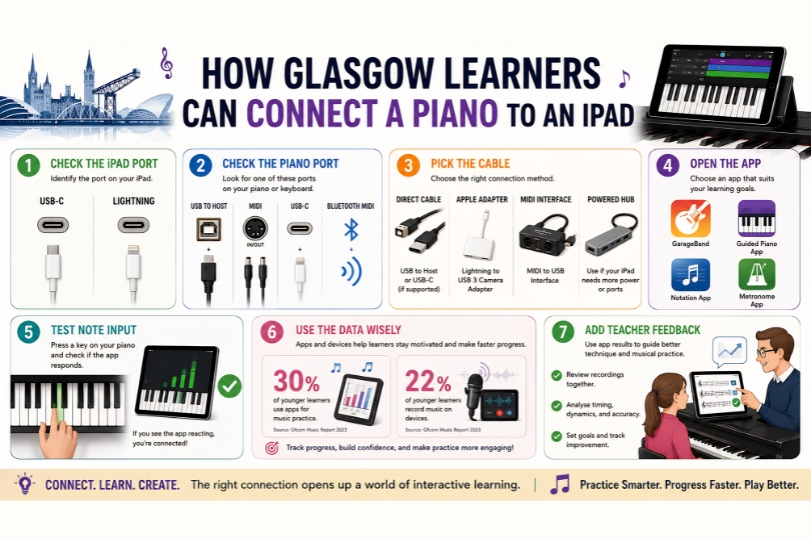
Step 1. Identify your iPad port
Look at the charging port.
- If it is oval and the same both ways, it is USB-C
- If it is smaller and older, it is Lightning
For USB-C, you may be able to connect your keyboard directly with the correct cable or through a USB-C hub. Apple lists several USB-C iPad models and says that USB-C iPads can connect to keyboards, audio interfaces, and MIDI devices.
For Lightning, use a Lightning to USB camera adapter. The version with an extra charging port is often more reliable because some keyboards require more power than the iPad can provide.
Step 2. Identify your piano port
Most home digital pianos have one of these.
- USB to Host
- USB-B, the square printer-style port
- Five-pin MIDI In and MIDI Out
- Bluetooth MIDI
- USB-C
If your piano has USB-B, use a USB-B to USB-A cable, then connect that to your iPad adapter. If your piano has USB-C, use a USB-C cable that supports data, not only charging. If your piano has old five-pin MIDI ports, you will need a MIDI interface.
If you own an acoustic piano, it cannot send MIDI by itself. You would need a silent system, a sensor system, or a separate MIDI keyboard. This is where it is worth being honest. Glasgow Piano Tuition can help you learn and practise musically, but it is not a piano repair workshop or hardware retailer. For older acoustic instruments, a piano technician or music technology specialist may be the right next step.
Step 3. Connect everything in the right order
To Connect piano to iPad, turn the piano off first. Plug the cable into the piano. Plug the other end into the iPad or adapter. Then turn the piano on and open your learning app.
This order is not magic, but it helps some apps detect the instrument properly. If the app does not recognise the piano, close the app and reopen it. If that still fails, restart the iPad. Simple, slightly boring, but it often works.
Step 4. Choose the right app
Different apps suit different learners.
GarageBand is great for creative exploration and recording. A guided learning app can help with note recognition, rhythm, and practice streaks. A notation app works well for reading music. A metronome app is still one of the most useful tools you can have.
ABRSM data shows that digital learning resources are now part of a wider mix rather than a full replacement for personal teaching. That feels right. Apps can be brilliant for repetition, but they do not always spot tension in your wrist, uneven tone, or a rushed phrase.
Best apps after you Connect piano to iPad
Here is a practical way to think about apps.
- For creativity, try GarageBand
- For structured beginner songs, try a guided piano app
- For notation reading, try a sheet music reader
- For rhythm, use a metronome app
- For exam practice, use tools that match your grade syllabus
- For recording progress, use the iPad camera or an audio app
I was sceptical the first time I saw a learner use an app to slow a backing track down. It felt a bit too easy. Then I watched them practise the same tricky bar calmly five times instead of giving up. That changed my mind. Used well, the iPad lowers frustration.
Common search phrases and what they usually mean
People often search for a MIDI keyboard with an iPad when they want a small controller for apps. The phrase piano keyboard connected to iPad ” usually means a beginner keyboard and a simple adapter. If someone types digital piano connect to iPad, they are probably using a full-size home piano with USB to Host.
Model searches are common, too. Learners often ask how to connect the Yamaha P45 to iPad or connect the Yamaha P125 to iPad because those models are popular home instruments. Others search connect piano keyboard to ipad, connect music keyboard to ipad, connect ipad to Roland piano, connect ipad to piano, connect ipad to keyboard piano, connect ipad to digital piano, or connect digital piano to ipad when they are not sure which cable or app they need.
Troubleshooting after setup
Connect piano to iPad with a calm checklist if nothing happens. Do not panic. Work through these checks.
- Make sure the cable transfers data
- Check that the piano is turned on
- Open the app after connecting the cable
- Look inside the app settings for MIDI input
- Try a powered USB hub if the iPad shows a power warning
- Remove Bluetooth headphones if you notice a sound delay
- Test with GarageBand to see if the iPad receives notes
If your app hears the piano but you hear no sound, remember that MIDI is not audio. MIDI tells the app what notes you played. The sound may come from the iPad, the piano, headphones, or external speakers, depending on the app settings.
How lessons and iPad practice work together
This is where Glasgow Piano Tuition fits naturally. A tutor can show you how to set a practice goal, choose the right app, and avoid letting the screen lead everything. The iPad should support your ears and hands, not distract from them.
The Independent Society of Musicians reported that its 2024 to 2025 teaching fees survey had 1037 usable responses. In that survey, piano or organ was taught by 47.1 per cent of respondents, and the median private teaching rate in Scotland was £36 per hour. These numbers are useful context when Glasgow learners compare lesson options and decide whether they need weekly tuition, occasional coaching, or app-supported practice at home.
You can also explore free piano classes if you want a gentle starting point before committing to a full routine.
Best fit and honest limitation
Glasgow Piano Tuition is a strong fit if you want proper musical guidance, clearer practice habits, and help using your iPad without losing sight of technique. It is especially useful for beginners, returning adults, and parents who want their child to practise with more confidence at home.
It may not be the best fit if you only need someone to sell you cables, repair a piano, or install a specialist silent piano system. In that case, start with a trusted music shop or technician, then bring the setup into lessons once it works.
Comparison of learning options
| Option | Best for | Strength | Limitation |
| Glasgow Piano Tuition | Local learners who want teacher guidance and practical iPad support | Human feedback, musical structure, and help with practice habits | Not a hardware shop or repair service |
| Piano learning app only | Learners who want flexible solo practice | Instant note feedback and simple progress tracking | May miss posture, tone, and technique issues |
| YouTube tutorials | Curious learners exploring songs casually | Free and full of ideas | Quality varies and there is no personal correction |
| Music shop advice | People choosing cables, adapters, or keyboards | Good for equipment matching | Usually not a full learning plan |
Practice routine for Glasgow learners
Once the setup works, keep practising simple.
- Start with five minutes of warm-ups
- Use the app for one clear skill, such as note reading or timing
- Practise a short section from your lesson piece
- Record one take and listen back
- End by playing something you enjoy
That last part matters. A little enjoyment keeps you coming back. Interactive learning should not turn your piano into homework with flashing lights. It should make you more aware, more curious, and a bit more willing to try again.
Final thoughts
Connect piano to iPad and you open up a useful new layer of practice. You can record yourself, follow interactive exercises, slow things down, and get clearer feedback between lessons. Still, the best results usually come when the technology is paired with good teaching, patient repetition, and music you actually enjoy playing. For learners in Glasgow who want that balance, Glasgow Piano Tuition is a natural place to start.
FAQs
Q1. Can I connect any piano to an iPad?
You can connect most digital pianos and keyboards to an iPad if they support USB, MIDI, or Bluetooth MIDI. A traditional acoustic piano will not connect directly unless it has a silent system or a MIDI sensor installed.
Q2. What cable do I need to Connect piano to iPad?
It depends on your iPad and piano model. Newer iPads usually use USB-C, while older iPads need a Lightning adapter. Many digital pianos use a USB-B cable, similar to a printer cable, along with the correct iPad adapter.
Q3. Can I use piano learning apps after connecting my piano?
Yes, once your piano is connected, apps can detect the notes you play and give feedback on timing, accuracy, and progress. This is useful for beginners, children, and adults who want more interactive practice at home.
Q4. Why is my iPad not detecting my piano?
The most common reasons are using a charging-only cable, opening the app before connecting the piano, missing MIDI settings inside the app, or the iPad not supplying enough power. Try a data cable, restart the app, and use a powered USB hub if needed.
Q5. Is connecting a piano to an iPad better than taking lessons?
It helps, but it is not a full replacement for lessons. An iPad can support practice and make learning more engaging, but a teacher can correct posture, technique, rhythm, expression, and habits that apps may not notice.